


How To Install Microsoft SQL Server on Ubuntu Linux in 5 Minutes

Jeremy Morgan 
Dec 6, 2016 - 3 min read
Last Update: Mar 25, 2023

AI changed software development. This is how the pros use it.
Written for working developers, Coding with AI goes beyond hype to show how AI fits into real production workflows. Learn how to integrate AI into Python projects, avoid hallucinations, refactor safely, generate tests and docs, and reclaim hours of development time—using techniques tested in real-world projects.
I must admit I was surprised when I learned that Microsoft SQL Server would be availble in Linux. They’ve been pushing the open source initiative hard, but I didn’t expect something this big. Oh yeah, Visual Studio is now available for Mac as well. I just saw a pig flying by.
While MS-SQL is not open source they have made it available to run on open source platforms such as Linux and OSX, which I can imagine took a ton of work. So I decided to take advantage of this new option and try it out. It works great! It took 5 minutes to install. Here’s how you can do it too. Note that you will need a server with 3.5 gigs of RAM for this.
The first thing I always do on an Ubuntu machine is update it
sudo apt-get update
sudo apt-get upgrade
Next we need to import the public repository GPG keys
curl https://packages.microsoft.com/keys/microsoft.asc | sudo apt-key add -
curl https://packages.microsoft.com/config/ubuntu/16.04/mssql-server.list | sudo tee /etc/apt/sources.list.d/mssql-server.list
Next we’ll install SQL Server.
sudo apt-get update
sudo apt-get install -y mssql-server
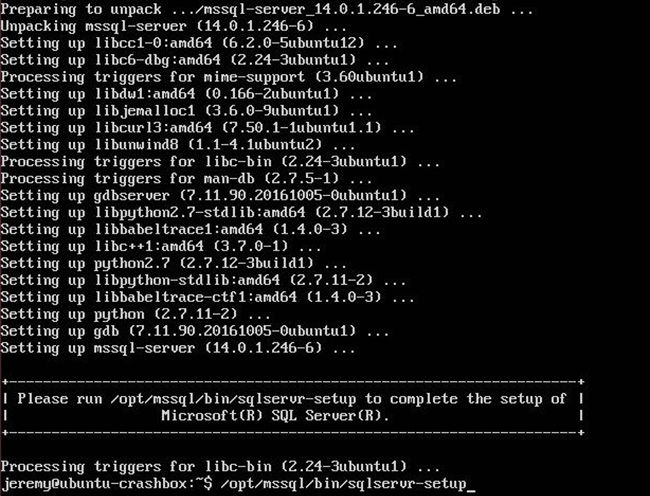
Now we need to run a configuration script to set up the server:
sudo /opt/mssql/bin/sqlservr-setup
It will ask if you want to start the service and if you’d like to start it on boot.
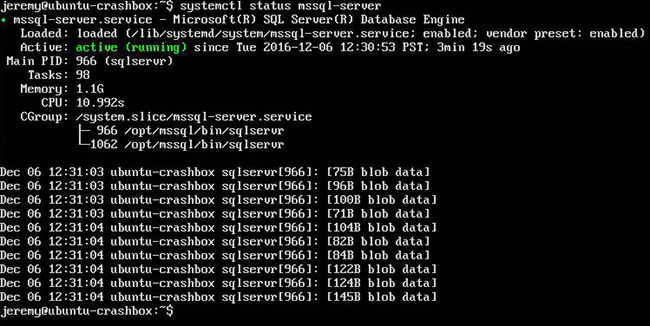
Here’s how you can check if the service is running:
systemctl status mssql-server
Install the MSSQL Tools for Linux
To test this out a little, install the MSSQL tools on Ubuntu.
Add in a new repository:
curl https://packages.microsoft.com/config/ubuntu/16.04/prod.list | sudo tee /etc/apt/sources.list.d/msprod.list

sudo apt-get update
sudo apt-get install mssql-tools
Now, Let’s try to connect!
sqlcmd -S localhost -U SA -P '<YourPassword>'
You can run this command to view all your databases:
SELECT Name from sys.Databases;
GO
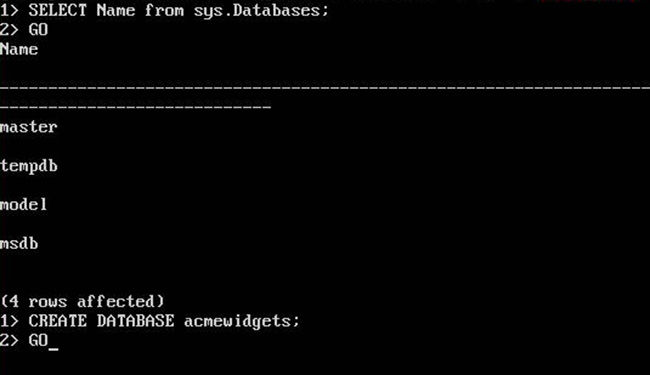
This should look pretty familiar to you if you’ve worked with SQL in the past.
CREATE DATABASE acmewidgets;
GO
Now we need to select that database:
USE acmewidgets;
GO
As a test. let’s create a customer table
CREATE TABLE customer (id INT, firstname NVARCHAR(50), lastname NVARCHAR(50));
GO
Now, let’s put some customers in there:
INSERT INTO customer VALUES (1, 'Lloyd', 'Christmas');
INSERT INTO customer VALUES (2, 'Harry', 'Dunn');
INSERT INTO customer VALUES (3, 'Mary', 'Swanson');
GO
Now, let’s take a look at those customers:
SELECT * FROM customer
GO
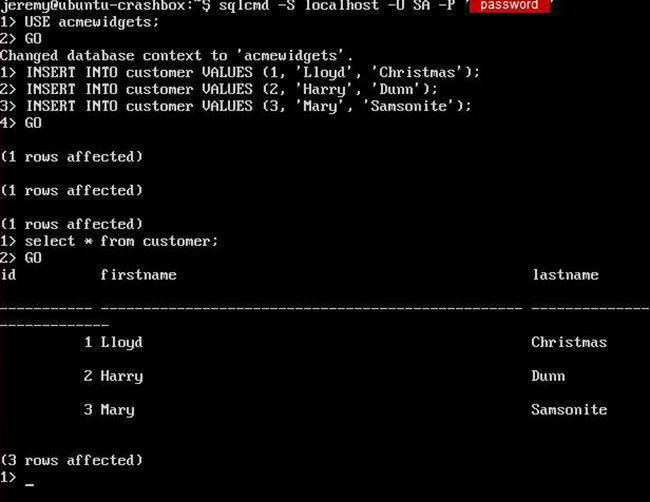
And it’s that easy! You can run SQL scripts here, or connect to it from SSMS, a traditional ASP site, or a .Net Core site/app. I’ll be doing a lot of ASP.Net core work in the coming months, so be sure to check back here.
To quit from SQL server, type in
QUIT
And you’re done!
I’ll be messing with this some more in the coming weeks and really putting it to the test, and I’ll share my results.
-Jeremy
I also did a YouTube tutorial for this article.

Want to learn more about Linux? Of course you do. Check out this Linux Fundamentals course. You can sign up for a free trial here and take it today!

Skip the hype. The newsletter that keeps you in the know.
AI news curated for engineers. The AI New Hotness Newsletter is what you need.
Zero fluff. Just the research, tools, and infra updates that actually affect your production stack.
Stay up to date on AI for developers - Subscribe on LinkedIn

