


How to Set up Bluetooth in Arch Linux

Jeremy Morgan 
Apr 30, 2020 - 3 min read
Last Update: Jun 7, 2024

AI changed software development. This is how the pros use it.
Written for working developers, Coding with AI goes beyond hype to show how AI fits into real production workflows. Learn how to integrate AI into Python projects, avoid hallucinations, refactor safely, generate tests and docs, and reclaim hours of development time—using techniques tested in real-world projects.
I installed Arch Linux on my new laptop a couple of months ago, and strangely enough, never used Bluetooth on it yet. Bluetooth in Arch Linux can be fun and interesting at times.
I wanted to use my favorite Sony headphones on my laptop (It only has Arch Linux on it, no Windows!), so I thought I’d document the process.

Step 1: Install Bluez and Blueman
The first step is to install some utilities.
I will install:
sudo pacman -S bluez
sudo pacman -S bluez-utils
sudo pacman -S blueman
These should install without a problem. You’ll see a neat icon here:

Next, make sure the btusb Kernel module is loaded:
lsmod | grep btusb
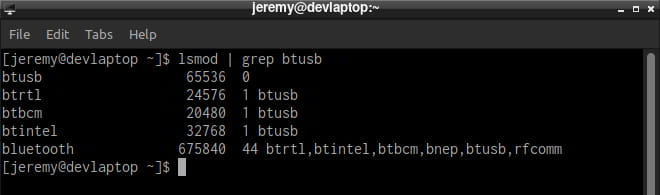
Here’s a trick to help it find adapters, even if you plug one in:
sudo vim /etc/bluetooth/main.conf
Search for autoenable:

Save the file.
2. Enable the Service
Next, we want to try starting up the service:
sudo systemctl start bluetooth.service
If you want it to start up automatically, enable it:
sudo systemctl enable bluetooth.service
Now we should be up and running. You can turn on all adapters with Blueman:
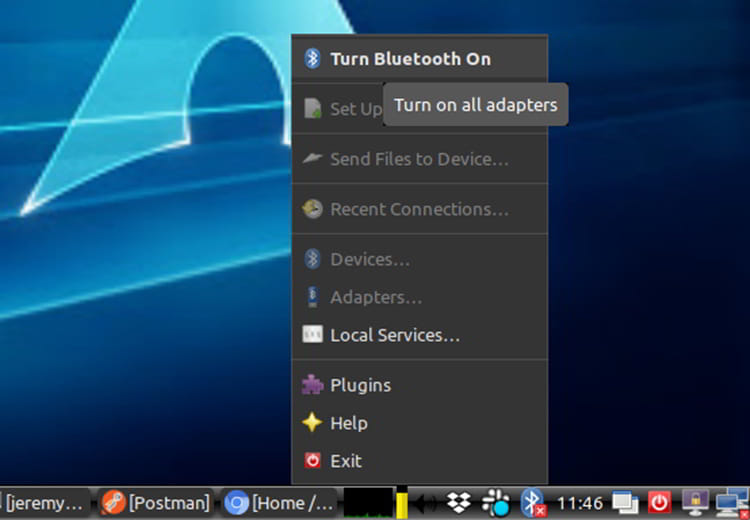
Now you should be ready to connect and pair.
3. Pairing
Blueman makes pairing pretty easy:
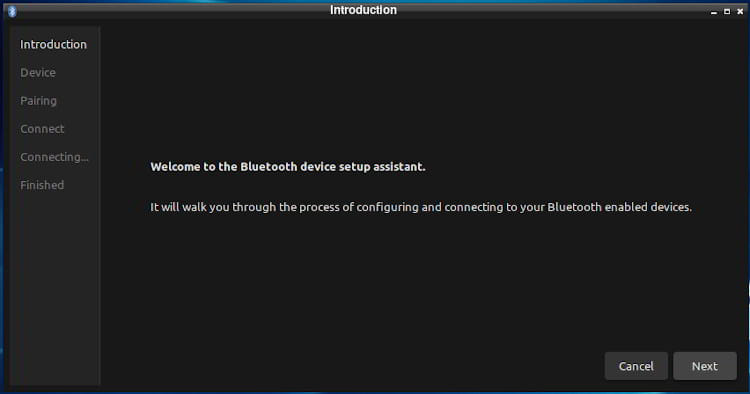
Select a device:
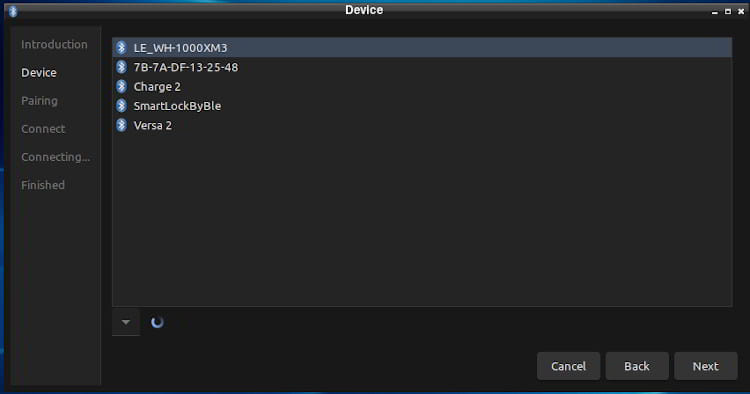
Start pairing:
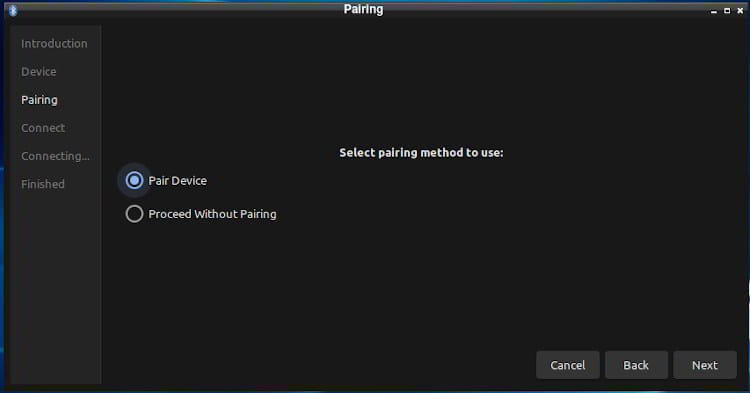
And you’re done connecting!
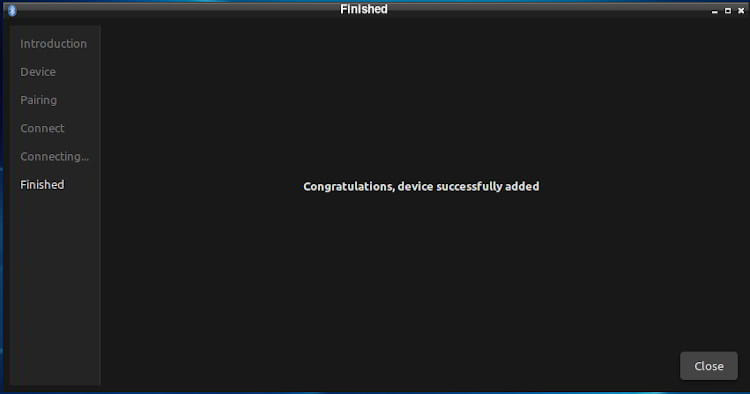
If you’re connecting headphones like I am, there are a few more steps.
Connecting Audio
First off, I’ll install pulseaudio and the Bluetooth extension.
sudo pacman -S pulseaudio
sudo pacman -S pulseaudio-bluetooth
Start up pulseaudio:
sudo systemctl pulseaudio start
If you want it to start up automatically:
sudo systemctl start pulseaudio
One utility I like to use to control audio (point it towards my speakers or the headphones) is Pavucontrol.
sudo pacman -S pavucontrol
pavucontrol
This is a great way to switch back and forth:
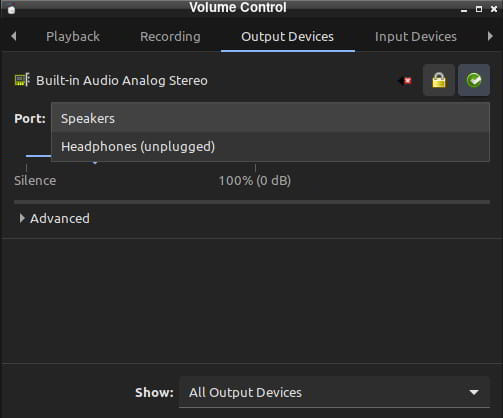
Note: If You Have a2dp
If your audio devices uses a2dp (Advanced Audio Distribution Profile), you may get the following error:
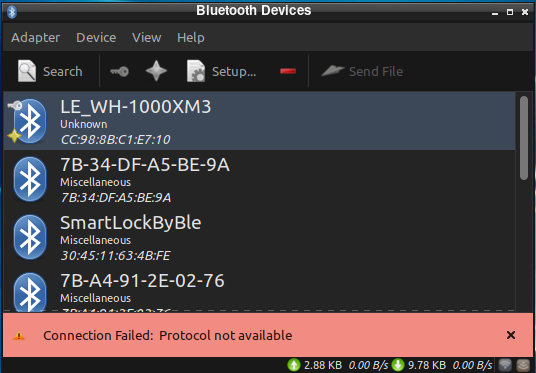
Connection Failed: Protocol not available
Here’s how to fix it. There’s a gdm fix, so it connects upon login (if you’re using GDM)
cd ~/src
git clone https://aur.archlinux.org/pulseaudio-bluetooth-a2dp-gdm-fix.git
makepkg -i
You’ll also need to do this:
Here’s a hotfix that I found that worked. Check out this gist.
Use this content for your bt-autoenable-a2dp.sh file:
mkdir -p ~/.config/scripts/xorg
vim ~/.config/scripts/xorg/bt-auto-enable-a2dp.sh
sh ~/.config/scripts/xorg/bt-auto-enable-a2dp.sh
Create a udev rules file and add this content
sudo vim /etc/udev/rules.d/20-bt-auto-enable-a2dp.rules
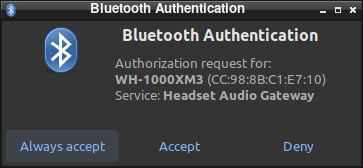
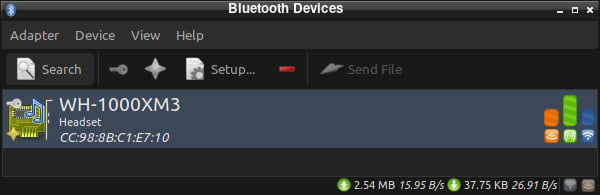
Now you should be up and running and listening to audio! It worked for my WH-1000MX3 headphones.
Questions, comments? Let me know!

Want to learn more about Linux? Of course you do. Check out this Linux Fundamentals course. You can sign up for a free trial here and take it today!

Skip the hype. The newsletter that keeps you in the know.
AI news curated for engineers. The AI New Hotness Newsletter is what you need.
Zero fluff. Just the research, tools, and infra updates that actually affect your production stack.
Stay up to date on AI for developers - Subscribe on LinkedIn

